Use the new Surface inspection feature to compare an as-built surface, such as a horizontal floor, vertical wall, inclined plane, or cylinder, with a reference surface. The Surface inspection Cogo function calculates the distance to the reference surface for each point in the selected scan(s) and creates an inspection point cloud.
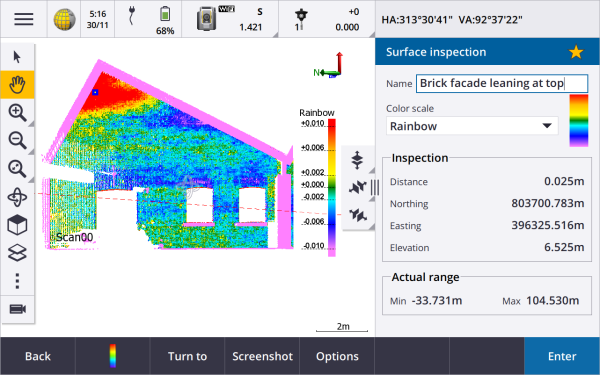
Points in the inspection point cloud are color-coded to provide immediate visual feedback between the point cloud and the reference surface. When inspecting a brick facade, for example, you will be able to see whether any sections of the facade are showing signs of movement off vertical.
Select any scan point to view information specific to that point. To turn the connected instrument to the selected point, tap Turn to.
Tap Store to save the inspection point cloud to the job. You can also save screen captures and annotate them if required, to highlight particular point details and problem areas.
Only scans created using a Trimble SX10 scanning total station can be used in the surface inspection. Multiple scans can be used if more than one scan is required to cover the as-built surface.
For more information, see the topic Surface inspection in the Trimble Access Help.
Repeating SX10 scans
If you are using a Trimble SX10 scanning total station to scan the same area multiple times, you can now quickly and easily repeat scans by loading the settings from a previous scan in the same job or a linked job. For example, you can scan a floor once to find the high or low areas that need leveling, and after performing remedial work you can repeat the scan to confirm the floor is within the required tolerances.
For more information, see the topic To repeat SX10 scans in the Trimble Access Help.
New surface inspection methods
The Surface inspection Cogo function, which was introduced in Trimble Access version 2020.20, includes the following new methods:
- Scan to surface, where you can compare a scan to a surface.
Supported surface file types include TTM, DXF, and RXL, as well as whole objects or individual faces in an IFC model.
For more information about whole objects and individual faces, see Surface selection enhancements for IFC and TrimBIM files below.
- Scan to scan, where you can compare a scan or region against earlier scan data.
For more information about the new region feature, see Create regions from scan point clouds below.
- Scan to vertical cylinder, where you can select three points to define the vertical cylinder you will use as the reference surface.
The existing Scan to cylinder method requires you to select two points that define the axis of the cylinder and then enter the radius of the cylinder.
All methods can be used with .rwcx scans created using a Trimble SX10 or SX12 scanning total station, or with regions created from .rwcx scans.
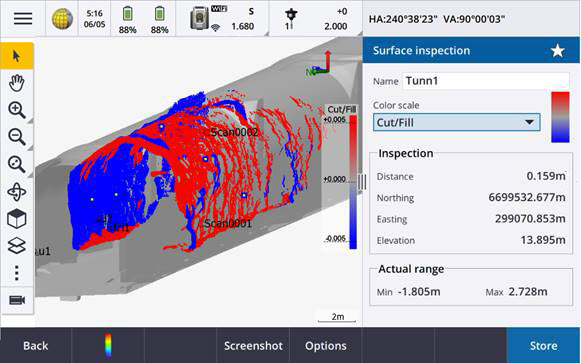
The example below shows the overbreak/underbreak when comparing a scan to an IFC tunnel design:
In addition, we have made the following enhancements:
- The inspection point cloud can now be viewed in the Video screen. In version 2021.00 you were able to perform a surface inspection from the Video screen but to view the results you needed to switch to the map view.
- When you tap Snapshot to create a screen capture of the current software view, the current view is first refreshed so that the names of the new points are shown.
- When you tap Store, any inspection points selected in the map are saved to the job. The stored points can be viewed in Review job or when you generate a surface inspection report.
- You can now create a Surface inspection report PDF file from the Job / Export screen. The Surface inspection report includes a summary of the surface inspection parameters, any screen captures of the surface inspection, and any inspection points stored with the surface inspection.
- You can now rename inspections in the Layer manager screen. You can also delete and restore deleted inspections, if required.
For more information, see the topic Surface inspection in the Trimble Access Help.
Create regions from scan point clouds
If you are working with .rwcx scans created using a Trimble SX10 or SX12 scanning total station, you can now create a region from selected scan points. A region contains scan points from one or more .rcwx scan point clouds, or from other regions. Creating a region provides a fast way to select only the scan points you are interested in and is especially useful when performing a surface inspection. To create a region, select the scan points to include on the map and then from the tap and hold menu, select Create region.
You can manage regions and scans, including renaming, deleting, and restoring deleted scans or regions, in the Scans tab of the Layer manager.
For more information, see the topic To manage scans in the Trimble Access Help.
Was this article helpful?
That’s Great!
Thank you for your feedback
Sorry! We couldn't be helpful
Thank you for your feedback
Feedback sent
We appreciate your effort and will try to fix the article